Step 1
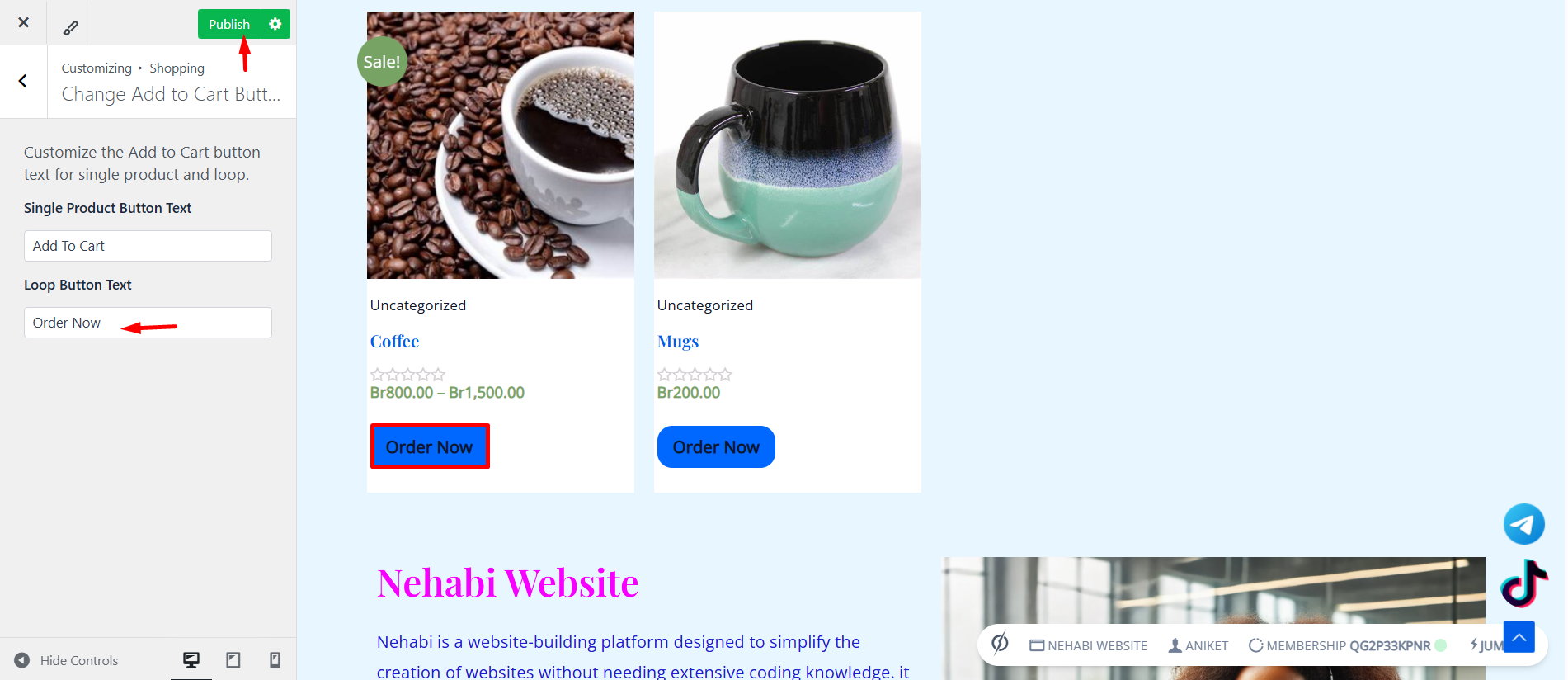
To change the “Add to Cart” button text, navigate to the Site Settings section and click on “Customize“.
Step 2
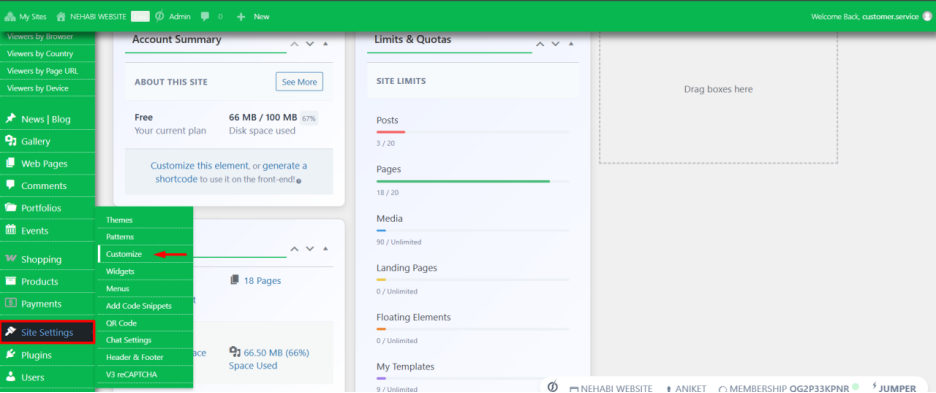
Click on Shopping to access the section where you can update the “Add to Cart” button text.
Step 3
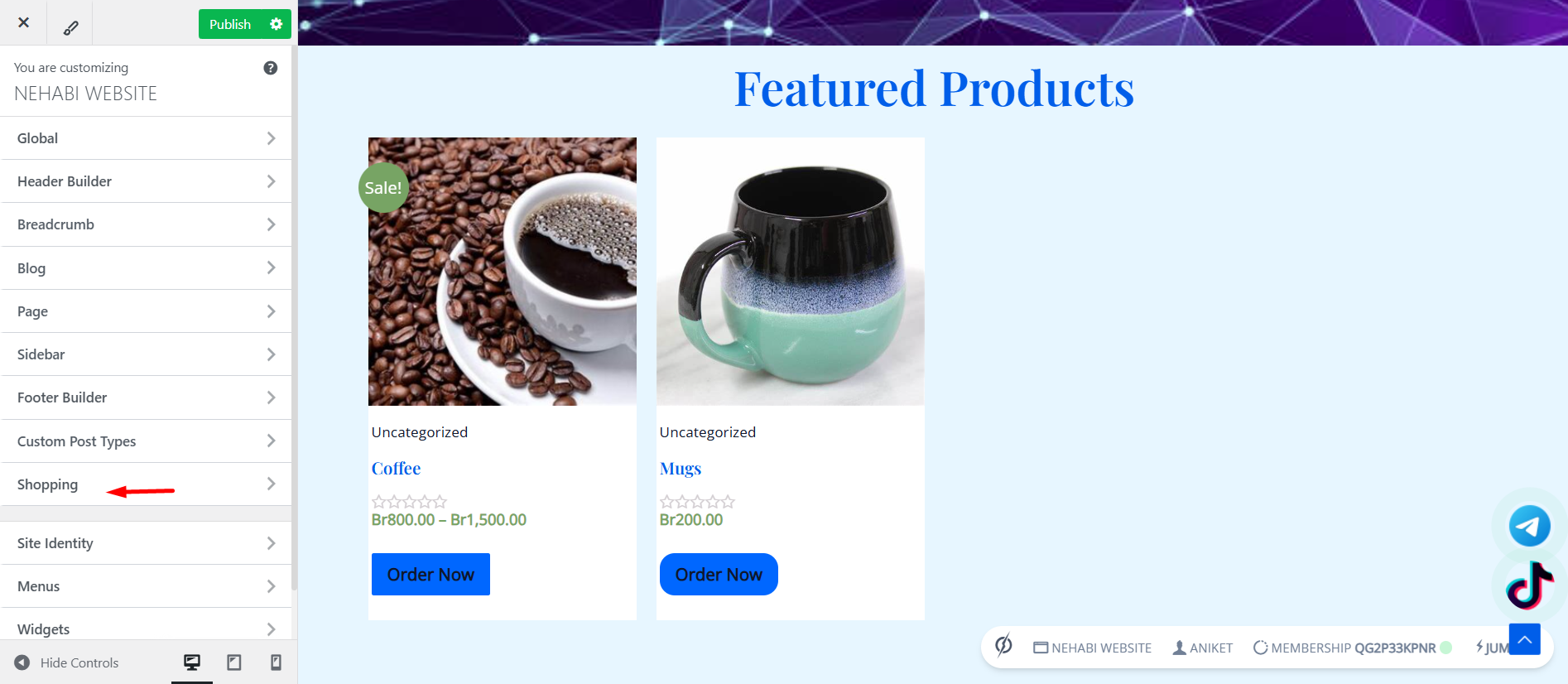
Click on Change Add to Cart Button to proceed with updating the button text.
Step 4
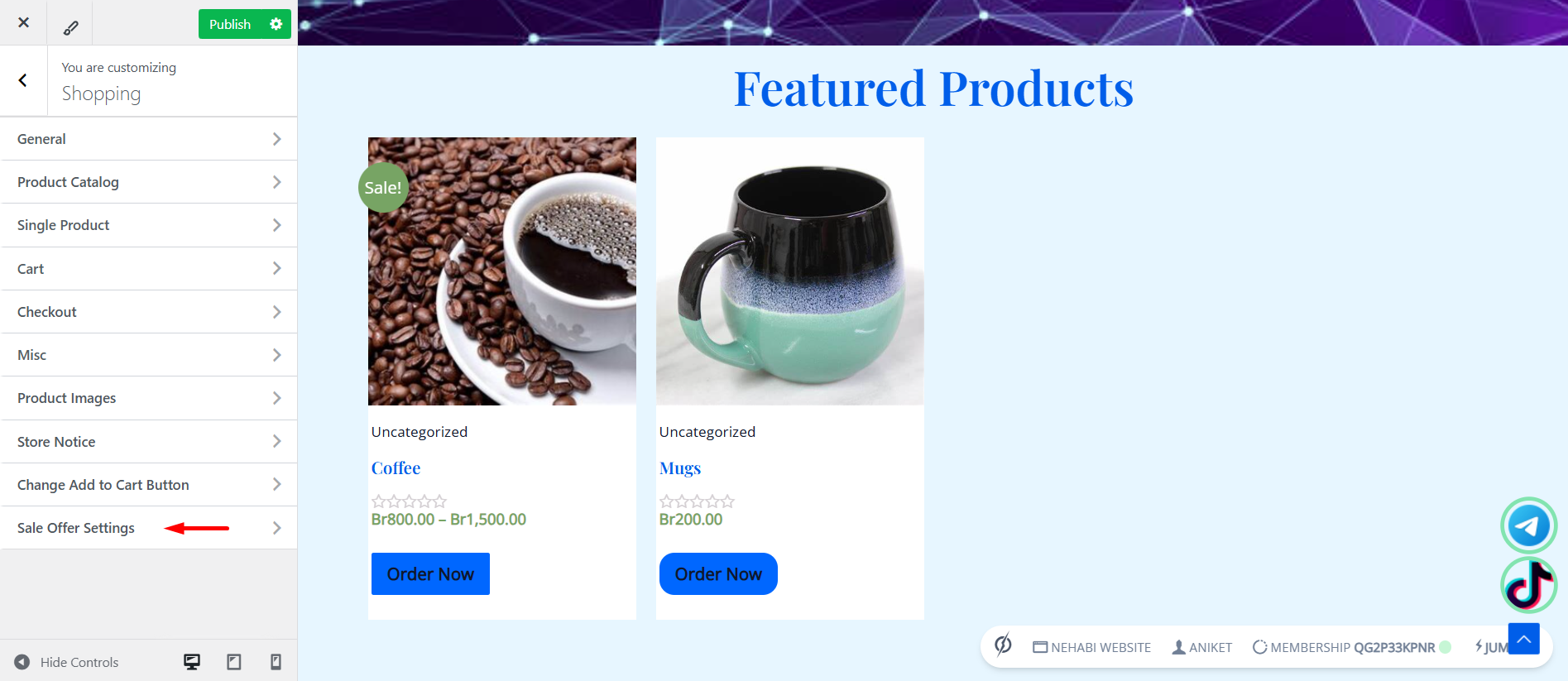
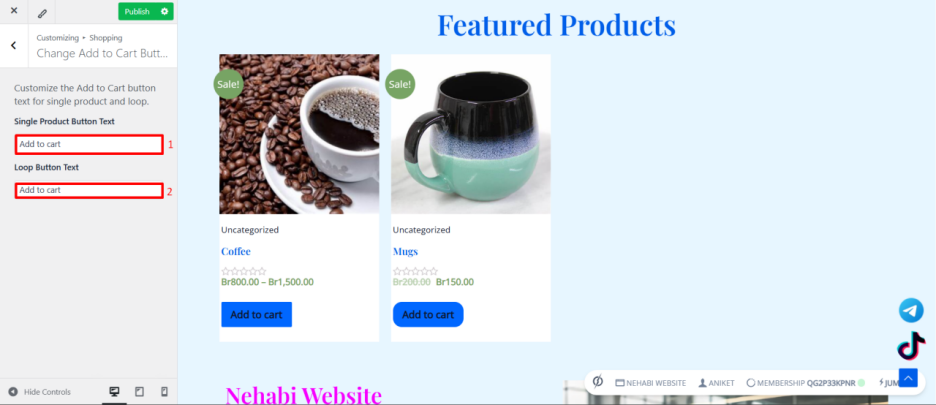
You can customize the button text in Red Box 1 for individual product pages and Red Box 2 for grouped product displays.
Step 5
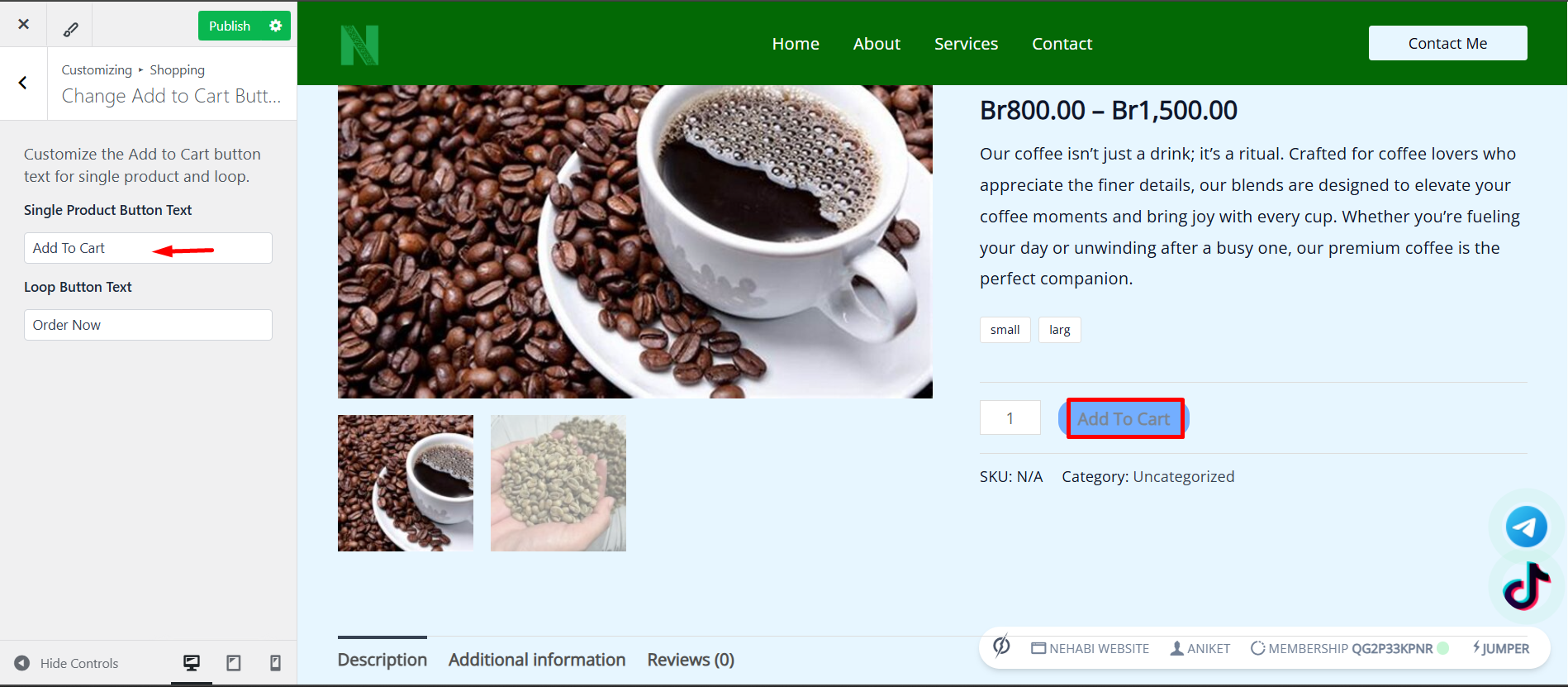
Red Box 1 is for the Single Product Button Text, which appears when a product is displayed individually.
Step 6
Red Box 2 is for the Loop Button Text, which appears when products are displayed in a group or list.
Once you have finished customizing, click on “Publish” to save and apply the changes.