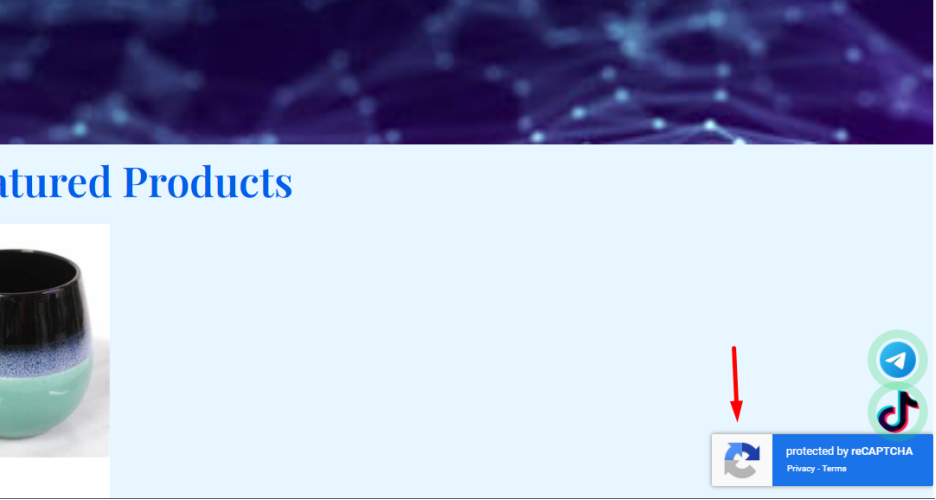
How to enable reCAPTCHA v3 ?
How does reCAPTCHA helps your website?
Google reCAPTCHA helps protect your website from spam, bots, and automated attacks while ensuring a smooth experience for real users.
1. Blocks Spam & Fake Submissions
- Prevents bots from submitting fake messages in contact forms, sign-up forms, and comment sections.
- Keeps your website’s data clean and relevant.
2. Prevents Fake Account Creation
- Stops bots from registering fake user accounts on your website.
- Ensures only real users can sign up.
3. Protects Login Pages from Brute Force Attacks
- Hackers use automated scripts to guess passwords.
- reCAPTCHA detects these attacks and blocks them, improving website security.
4. Reduces Unwanted Emails
- Spam bots can flood your contact forms, leading to a cluttered inbox.
- reCAPTCHA ensures only real users can send messages.
5. Improves Website Performance
- Bots can overload your website with unnecessary traffic, slowing it down.
- reCAPTCHA filters out bad traffic, keeping your website fast and responsive.
6. Works Invisibly (reCAPTCHA v3)
- No annoying puzzles or image selections.
- Runs in the background and assigns a spam score to visitors.
- Only blocks users if their behavior looks suspicious.
7. Protects Your Business & Reputation
- A secure website builds trust with customers.
- Prevents phishing attacks and fake reviews.
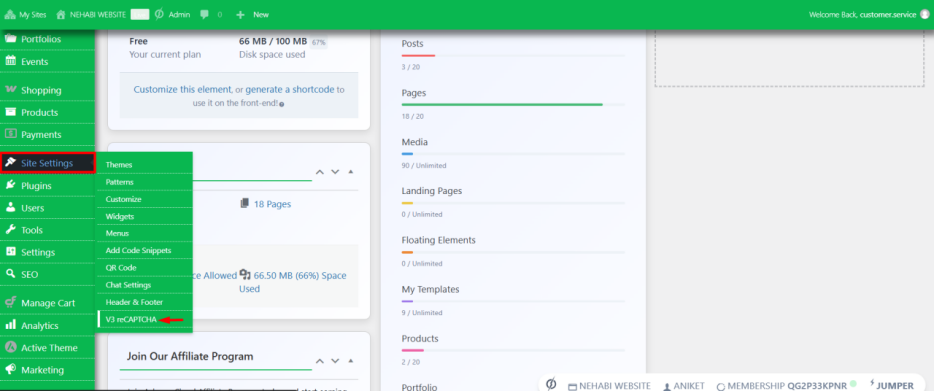
Step 1
Navigate to Site Settings to find v3 reCAPTCHA, then click on it to proceed.
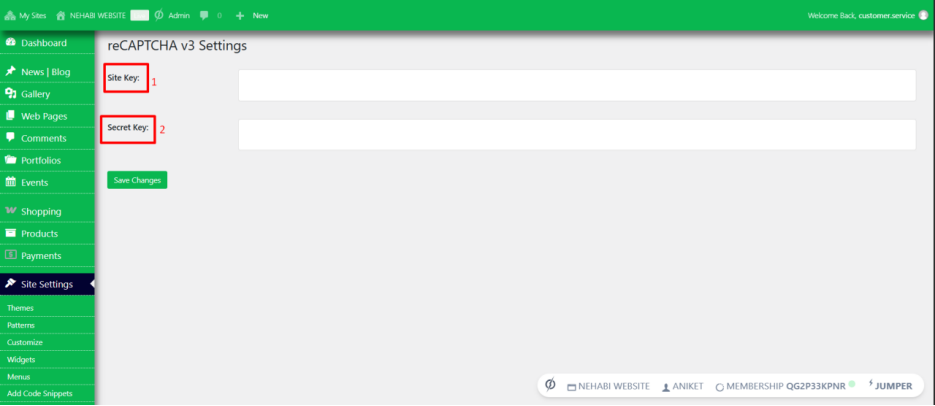
Step 2
You will find the Site Key and Secret Key, which are required to enable v3 reCAPTCHA
Step 3
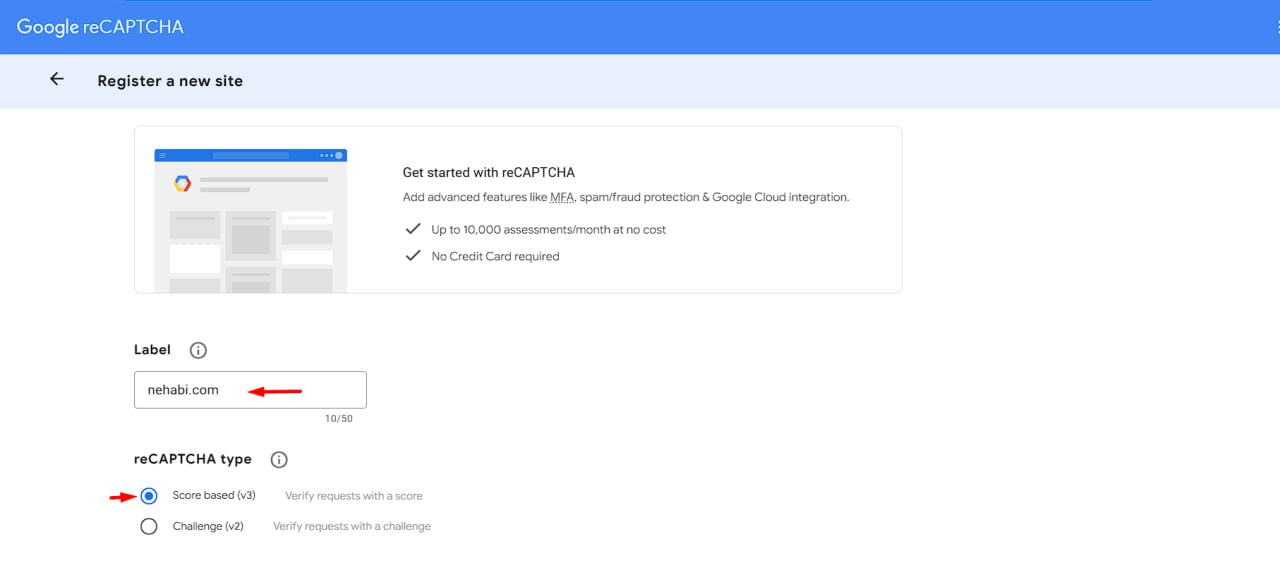
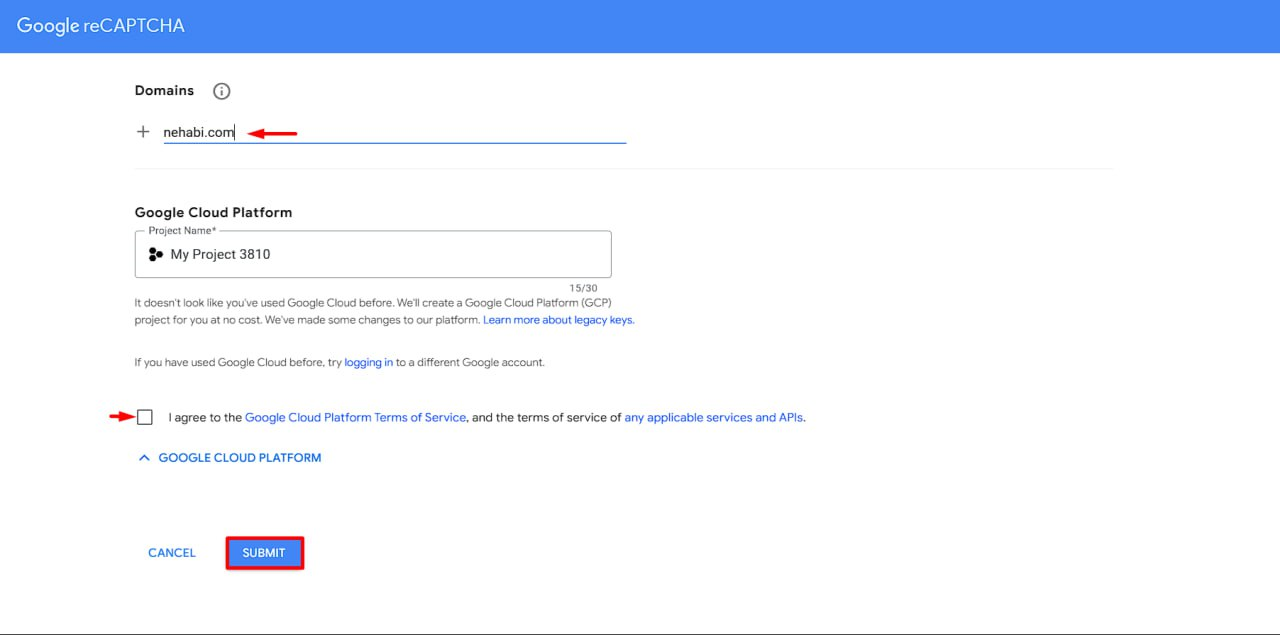
To obtain the Site Key and Secret Key, go to Google reCAPTCHA Admin.
If you already have a Google account, click the link to access the page. Follow these steps:
- Add your domain in the Label field.
- Select Score-based (v3) reCAPTCHA.
3.Enter your domain in the Domains section.
4. Tick on the agreement
5.Click Submit to generate your Site Key and Secret Key.
Step 4
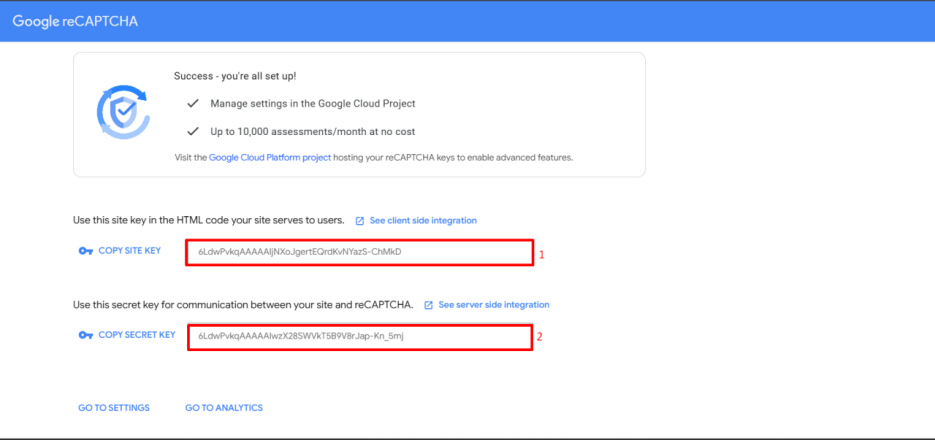
Google will provide you with the Site Key and Secret Key codes after submission. These keys are required to enable v3 reCAPTCHA on your website.
Step 5
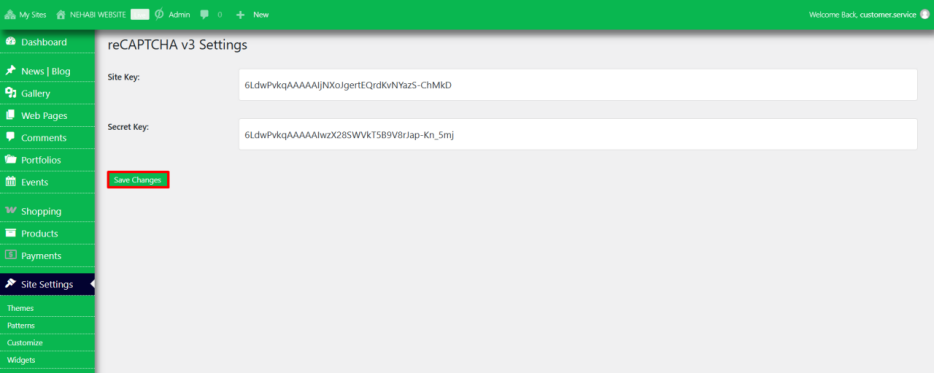
Copy the Site Key and Secret Key codes and paste them into the reCAPTCHA v3 settings on your dashboard. save the change once you are done.
Step 6
Once configured, reCAPTCHA v3 will be active on your website, running in the background to help protect against bots and spam.